

Any user accessing the Paxos Dashboard must be authorized and assigned one or more Roles, each of which consists of specific permissions that control access to various actions. Paxos provides a set of predefined roles that are available as soon as you sign up and onboard a new Entity.Documentation Index
Fetch the complete documentation index at: https://paxos-0ac97319-mintlify-update-docs-leave-org-flow-singular.mintlify.app/llms.txt
Use this file to discover all available pages before exploring further.
- To view, search and manage user access: Admin > Team Management > Users.
- To audit the list of permissions associated with a Role: Admin > Team Management > Roles
- To disable user access or change Roles, use the Edit Status dropdown in the User Actions menu at Admin > Team Management > Users.
Organization MembershipUsers can only belong to one organization at a time. If a user needs to join a different organization, they must first be removed from their current organization before accepting an invitation to the new organization.
Passkey-Based Login
Demo
- Go to Admin > Team Management
- Click Invite Users
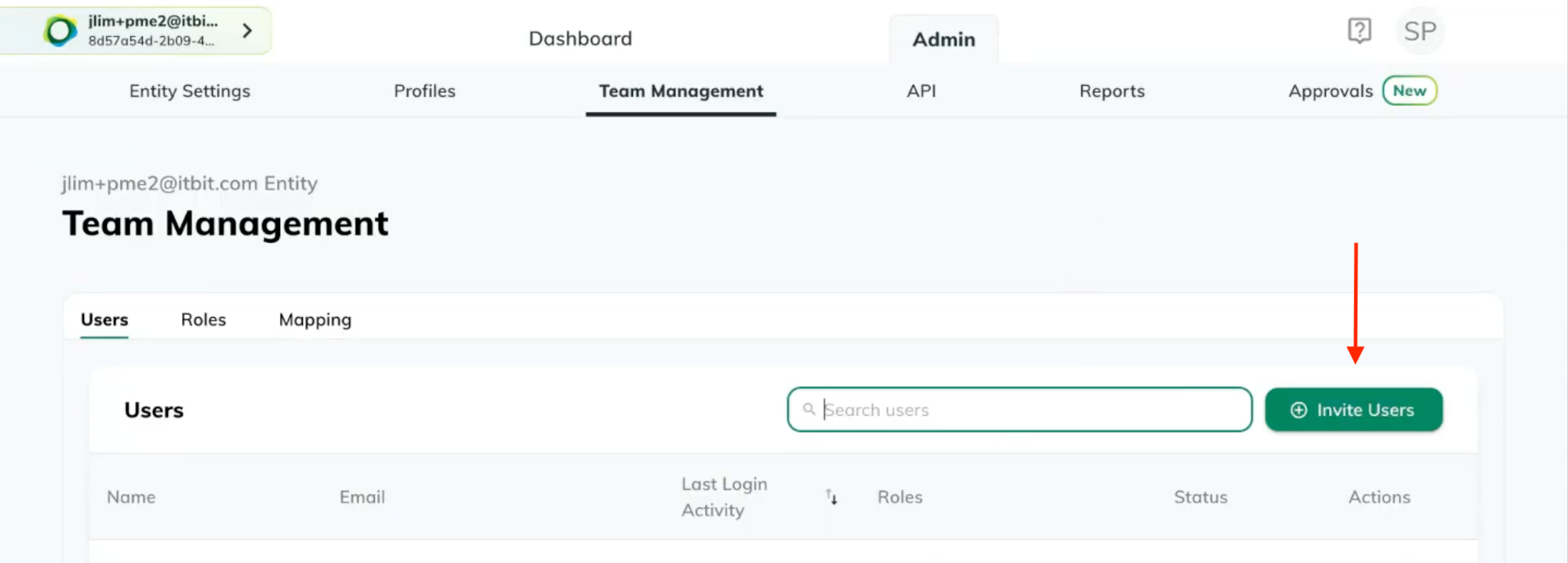
- Enter one or more emails and select a role from the dropdown.
- Click Invite Users
- Go to Admin > Team Management>Users
- Click on the Edit Role icon next to a user.
- Select one or more roles from the dropdown.
- Click the Save icon next to the dropdown.
SSO-Based Login
Demo
- Go to Admin>Team Management>Mapping.
- Click Add Mapping.
- Enter the Group Name exactly as it appears inside your Identity Provider’s configuration.
- Enter one or more Roles to associate with this Group.
Remove Users from Organization
Entity Managers and Organization Administrators can remove users from the organization. This is necessary when a user needs to leave the organization to join another one, since users can only belong to one organization at a time. Follow these steps to remove a user:- Go to Admin > Team Management > Users
- Find the user you want to remove
- Click on the User Actions menu (three dots) next to the user
- Select Remove User from the dropdown
- Confirm the removal